No products in the cart.
Introduction: The Frustration of the Wrong File Format
You just bought an amazing logo design from an online artist. You download the file, load it onto your USB, and plug it into your Brother embroidery machine. Nothing. A blank screen or an ugly error message. Your heart sinks. I have been there. You start wondering if you need to rebuy the design or beg the artist to resave it. But here is the truth: you do not need a new design. You just need to Convert Embroidery File for Brother Embroidery Machine from whatever weird format landed on your computer.
Brother machines speak a specific language. They love .PES files. That is their native tongue. But the world of embroidery throws all kinds of formats at you. .DST, .EXP, .CND, .XXX, .VIP, .SHV—the list goes on. Each format comes from a different machine brand. Tajima uses .DST. Melco uses .EXP. Bernina uses .CND. Your Brother just stares back like you handed it a book in ancient Greek.
The good news? Converting is easy once you know the right tools. I will walk you through free and paid methods, step-by-step workflows, and the common traps that turn a simple conversion into a thread-breaking nightmare. No jargon. No fluff. Just practical help so you can finally hit start and watch your Brother do what it does best.
Why Brother Machines Are Picky (And That Is Okay)
Brother embroidery machines dominate the home and small business market. You see them in garages, craft rooms, and small Etsy shops everywhere. The PE800, the SE1900, the PR series—they all expect .PES as their primary format. Some newer models read .DST too, but .PES remains the safest bet.
Why so picky? Brother builds their machines to read specific stitch data structures. A .PES file stores color order, thread trims, and jump stitches exactly how Brother wants them. Other formats store that data differently. When you force a .DST file into a Brother, the machine might scramble the color sequence or skip trims entirely. You end up with a design that sews but looks like a toddler drew it.
That does not mean other formats are bad. .DST works perfectly on Tajima commercial machines. .EXP runs great on Melco. But for your Brother, you need a translator. That translator is conversion software. It reads the source file, reorganizes the data, and spits out a fresh .PES file that your machine happily accepts.
Think of it like sending a text message. You type in English. Your friend speaks Spanish. You do not rewrite the whole message. You use Google Translate. Conversion software does the same thing for embroidery files.
Best Ways to Convert Embroidery Files for Brother Machines
You have options. Some cost money. Some are completely free. I will give you the best ones based on your comfort level and budget.
Option 1: Free Online Converters (Fast and Simple)
Online converters work great for occasional use. You upload your file, choose .PES as the output, and download the converted version. No software installs. No fees.
My go-to is Embroideres.com converter. It handles .DST, .EXP, .CND, .PCS, and .SEW. Upload, convert, download. The whole process takes under a minute. Another solid choice is ConvertEmbroidery.com. They keep your files private and delete them after one hour.
The catch? Free online converters sometimes mess up complex designs. They might drop color changes or misalign stitch angles. Use them for simple logos or text. For detailed portraits or dense patches, invest in desktop software.
Option 2: Wilcom TrueSizer (Free and Professional)
Wilcom TrueSizer is a hidden gem. It is completely free, runs on Windows, and lets you convert between dozens of formats including .DST to .PES. You also view, resize, and rotate designs before saving.
Download it from Wilcom’s official site. Open your source file. Click Save As, choose Brother .PES, and done. TrueSizer keeps all color information and trims intact. I use this for client work because it never corrupts files.
Option 3: Embird (Paid but Powerful)
Embird costs around $160 for the base program, plus plugins for specific formats. That sounds expensive, but if you convert files daily, it pays for itself. Embird batch converts entire folders. Drop fifty .DST files into the queue, set output to .PES, and walk away. Come back ten minutes later to fifty Brother-ready designs.
Embird also edits stitch angles and densities. You can fix a bad digitizing job before converting. That alone saves you from ugly sew-outs.
Option 4: Ink/Stitch (Free Open Source)
Ink/Stitch runs inside Inkscape, which is also free. It has a steeper learning curve but gives you total control. You import any embroidery file, view the stitch map, then export as .PES. Perfect for tech-savvy users who want to tweak every parameter.
Step-by-Step: Convert a .DST File to Brother .PES
Let me walk you through a real example. You bought a beautiful skull logo online. The artist sent a .DST file. Your Brother PE800 refuses to read it. Here is how you fix that in three minutes.
Step one: Download Wilcom TrueSizer. Install it. It takes about sixty seconds.
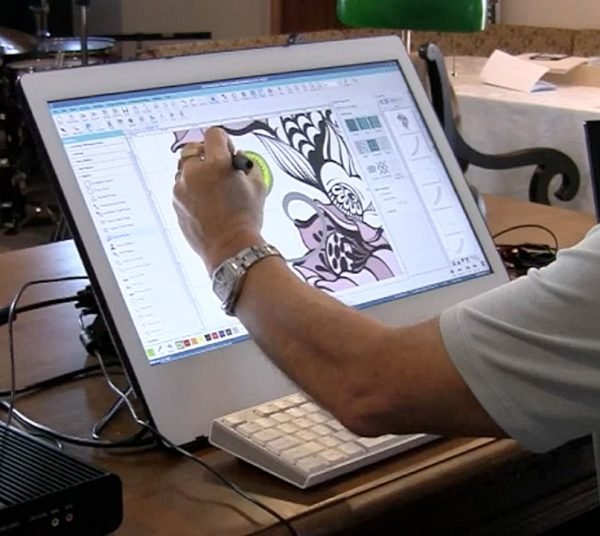
Step two: Open TrueSizer. Drag your .DST file into the window. The design appears on screen. You see every stitch, color block, and trim.
Step three: Click the Save As icon. A dropdown menu appears. Select Brother .PES from the list. Name your file something you will remember, like skull_logo_brother.pes.
Step four: Save it to your USB drive. Eject the drive properly. Plug it into your Brother machine. Navigate to USB. The design shows up. Load your hoop and sew.
That is it. No magic. No expensive software. Just a free tool and sixty seconds of your time.
Common Conversion Problems and How to Fix Them
Conversion usually works smoothly. But sometimes things go wrong. Here are the three biggest headaches and their solutions.
Problem one: Colors change after conversion. Your original design had red, white, and black. After converting to .PES, the red became pink and the black became dark grey. This happens when the source file uses non-standard color codes. Open the file in TrueSizer before converting. Manually reassign the correct thread colors from the Brother thread chart. Then save as .PES.
Problem two: Stitches look distorted or bunched up. The design sews fine on a Tajima but turns into a tangled mess on your Brother. This points to pull compensation differences. Tajima machines handle pull differently than Brother. Open the file in Ink/Stitch or Embird. Reduce the pull compensation by 0.2mm across all fills. Re-export. Test on scrap fabric.
Problem three: The design is too big or too small. You convert the file, but the dimensions change. Some converters misinterpret scaling data. Always check the dimensions in TrueSizer before saving. If the size is wrong, use the resize tool. Keep the aspect ratio locked so the design does not stretch.
When Not to Convert (And What to Do Instead)
Conversion solves many problems, but not all. Sometimes you should go back to the source.
If the design looks pixelated or blocky after conversion, the original file had low stitch density. No converter fixes bad digitizing. Contact the original artist and ask for a higher density version or a native .PES file.
If the design has more than fifteen color changes, conversion might scramble the sequence. Brother machines handle up to twenty colors, but each conversion adds a small risk. For complex multi-color designs, ask the digitizer for a native Brother file instead of converting a .DST.
If you convert the same file every week, stop converting manually. Batch convert once and save the .PES master copy. Keep it in a folder labeled Brother Ready. That way you never convert the same design twice.
Conclusion: You Own Your Embroidery Files Now
You do not need to beg designers for specific formats. You do not need to rebuy designs that came as .DST or .EXP. You simply need one free tool and five minutes of your time. Convert Embroidery File for Brother Embroidery Machine from any format—.DST, .CND, .VIP, .SEW, or .PCS—into a perfect .PES file that loads instantly on your PE800, SE1900, or PR series.
Start with Wilcom TrueSizer. It is free, safe, and professional. Try it on a file that failed before. Watch your Brother light up with recognition. Then sew out that design you almost gave up on. The feeling of watching your machine stitch a file that refused to work five minutes ago? Pure satisfaction.
No more error messages. No more blank USB screens. Just you, your Brother, and a hoop full of perfect stitches. Go convert something.